
The Chats menu includes every conversation visitors have had with your chatbot.
On the left side of the page, you’ll see each chat listed in order. Every chat includes the date it took place, the number of messages in the conversation, and the page where the chat was started.
Clicking on a chat will open it up on the right side of the page.
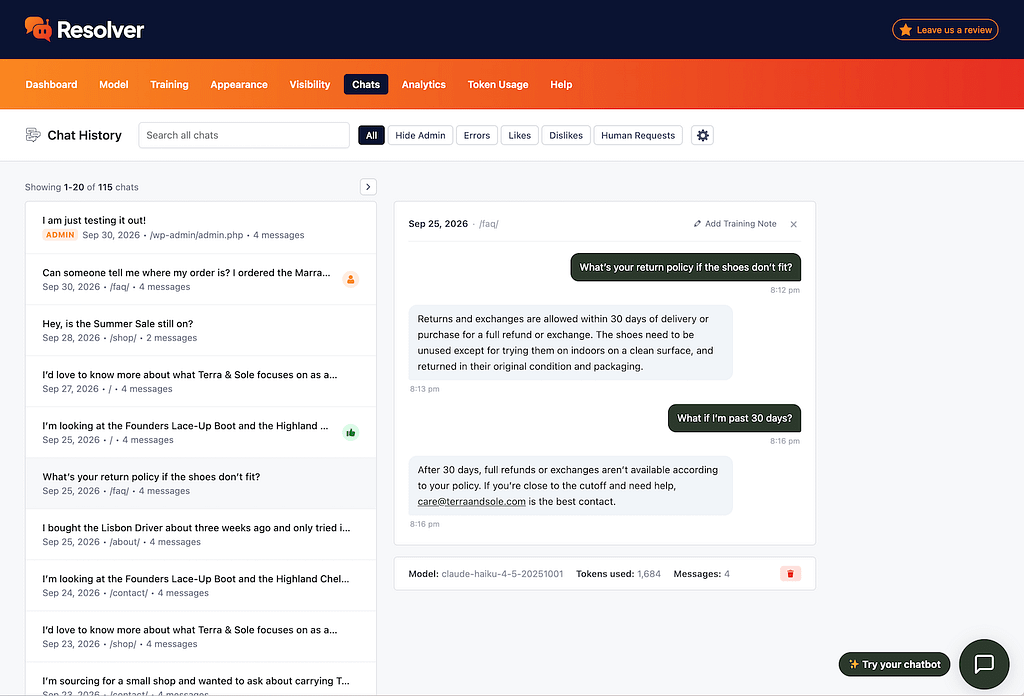
This lets you review the entire conversation to see what your visitor was asking and how well your chatbot performed. Below the messages, there is some additional data, including the name of the chat model used and the number of tokens spent on this conversation.
If this conversation took place with an admin user, you’ll see an ADMIN label added in both the chat list and below the conversation.
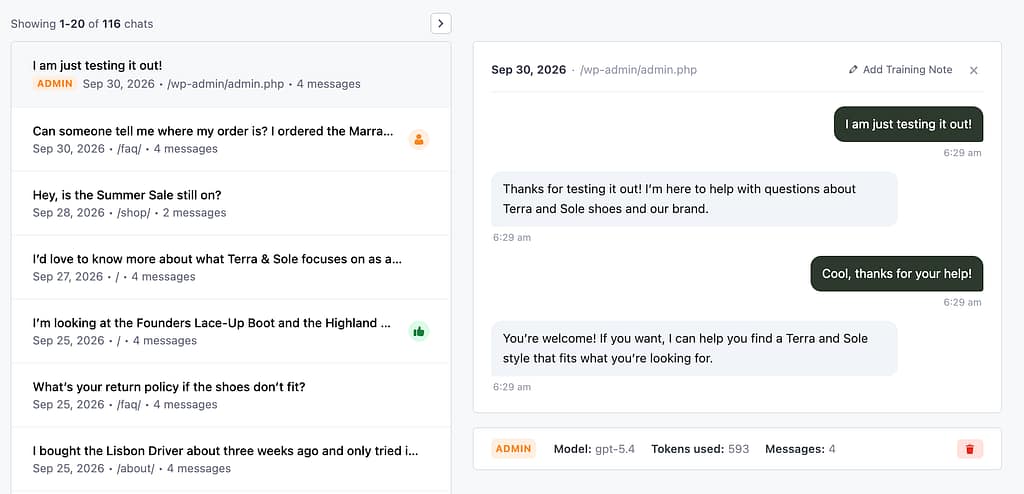
This makes it easy to identify conversations you had with your chatbot for testing purposes.
You can always delete a chat by clicking the red trash can button below the conversation.
How to filter the chats
The Chats menu includes a toolbar above the chat list. There is a search bar you can use to search the chats by keyword and a series of filter buttons.
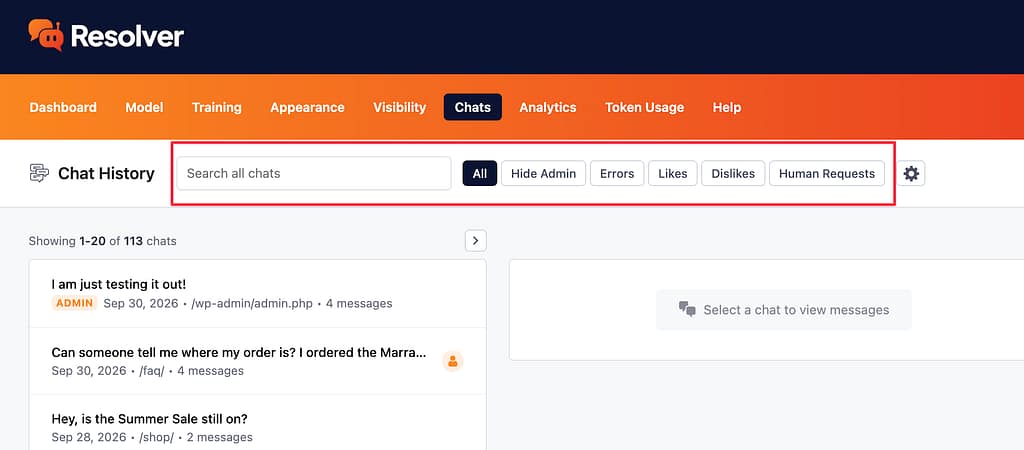
Here is a short explanation of how each filter works:
- All: display all chats
- Hide Admin: display all chats except for those labeled as ADMIN
- Errors: display any chats that returned an error message
- Likes: display all chats containing a message with a Like (PRO)
- Dislikes: display all chats containing a message with a Dislike (PRO)
- Human Requests: display all chats that contain a request for a real person (PRO)
How to delete chats
To delete an individual chat, click on it, and then click on the trash can icon below the messages.
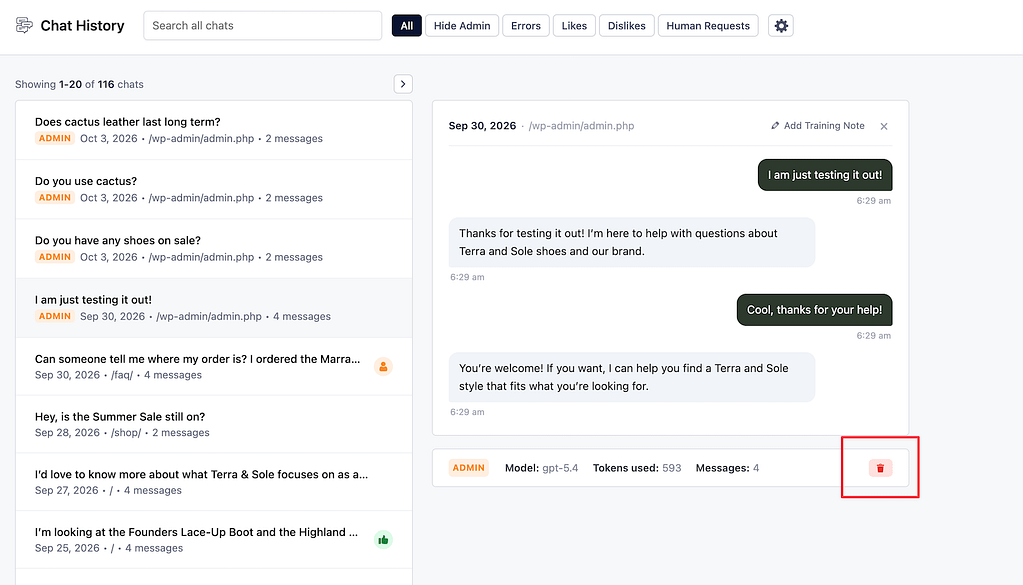
Click OK in the browser prompt that shows up, and the chat will be permanently deleted from your records.
How to automatically delete old chats
You can also automatically delete chats older than a certain threshold, such as 30 days or 1 year.
To enable this option, start by clicking the gear icon in the toolbar.

Then, use the Chat history setting to choose how long you’d like to keep the chats.
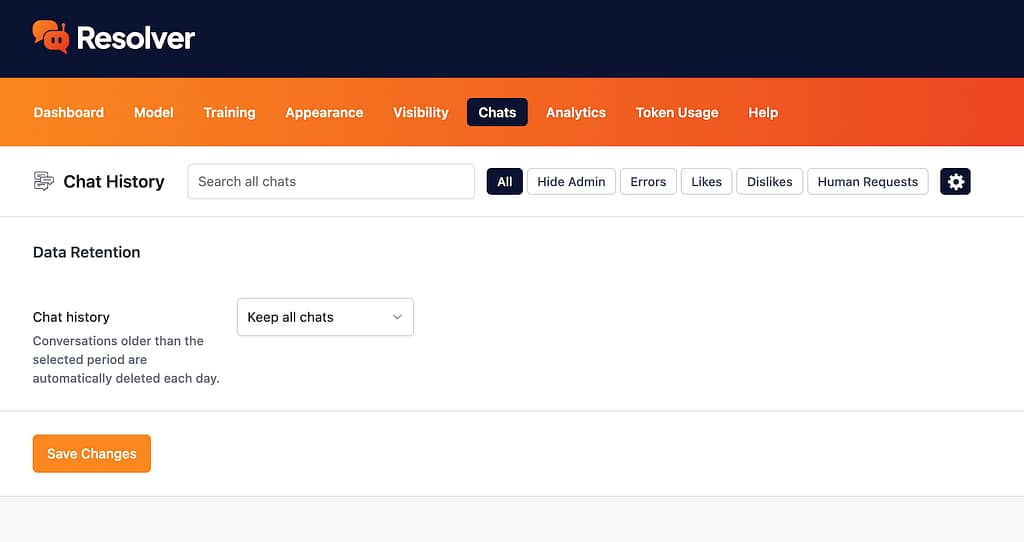
Once you’ve made your selection, click the Save Changes button to apply the new retention rule.
This will schedule a daily cron job that deletes any chats older than the selected threshold at midnight.