
Resolver integrates with these major AI platforms:
- OpenAI (ChatGPT)
- Anthropic (Claude)
- Google (Gemini)
- Mistral
Connect your site to an AI platform
To connect your site with one of these platforms, start by visiting the Settings > Connectors menu. Then, click the Install button for whichever AI platform(s) you want to use.
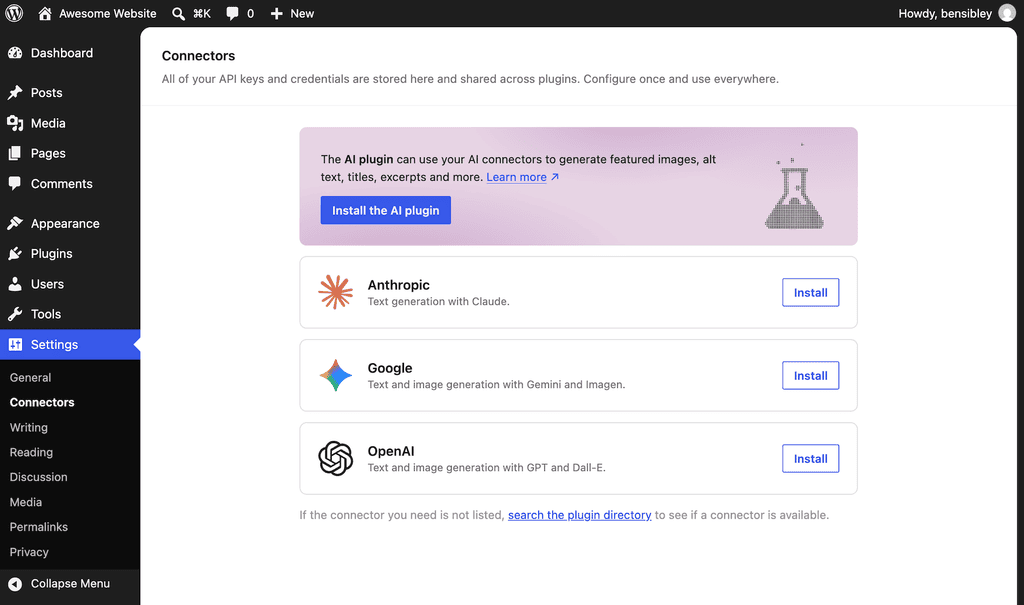
This will install and activate the connector plugin for you. Then enter your API key and click the Save button to create the connection.
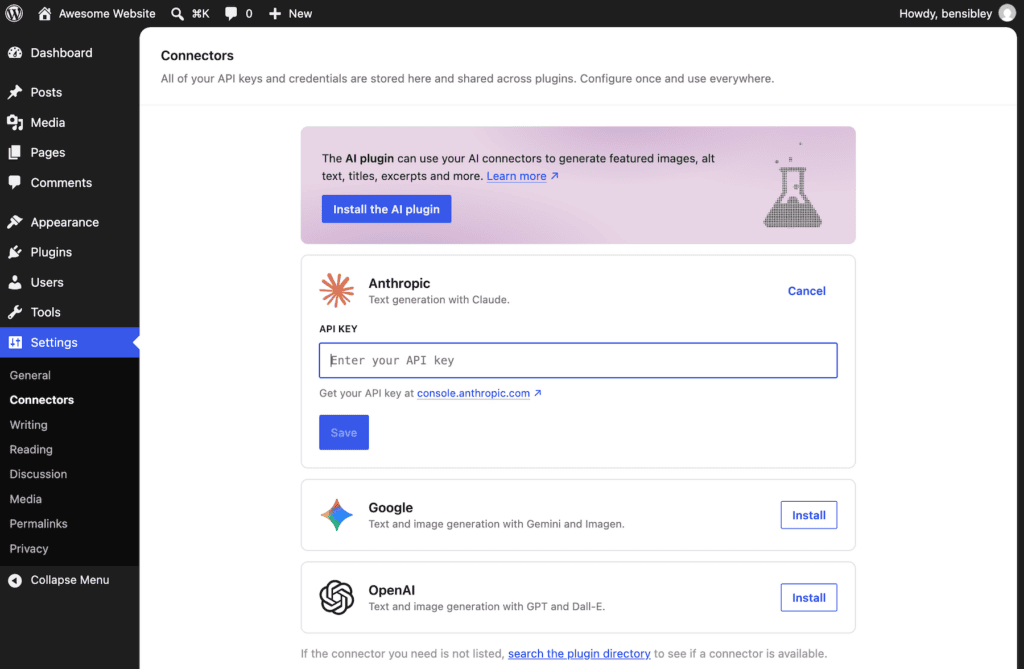
If you don’t have an API key yet, click the link provided in the Connectors menu. Or, use one of the links below:
You’ll create an account and then generate your API key. Once you get the API key, you will need to fund your account. You can start with a few dollars to test with. You won’t spend more than a few cents to extensively test your chatbot.
Once you have your API key, enter it into the corresponding input in the Connectors menu, and it will activate right away.
Select your AI platform in Resolver
To select your connected platform for Resolver, visit the Resolver > Model menu. Then, use the first option to select the AI platform that you just connected, and you’ll see a message confirming the connection.
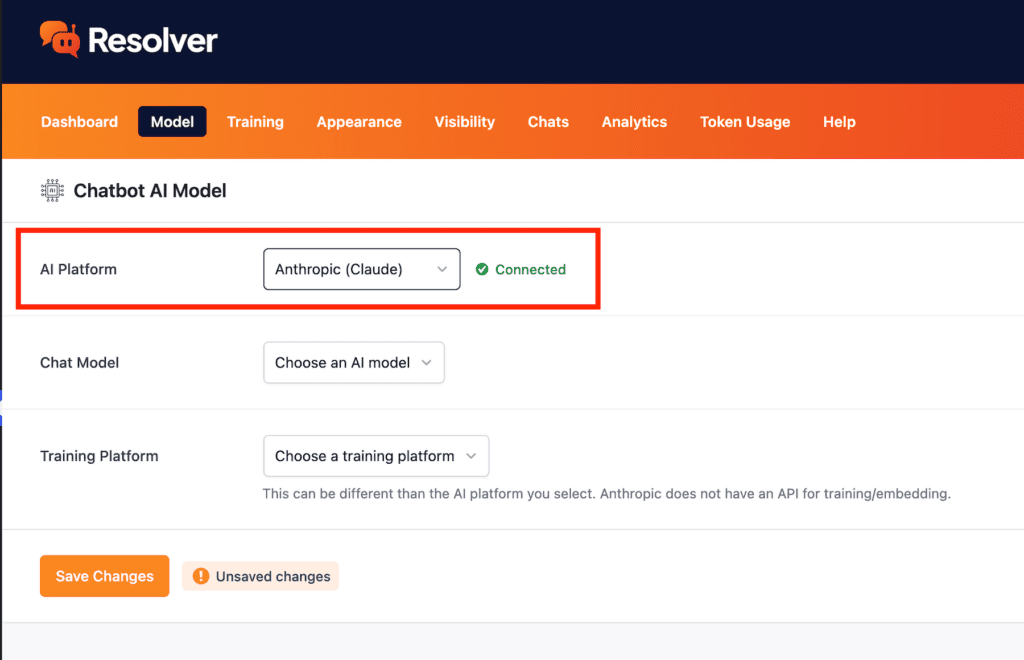
With your AI platform selected, you can continue by choosing a chat model and training platform.
Installing the Mistral Connector
If you choose to use Mistral, you can download the Mistral connector plugin here: https://wordpress.org/plugins/ai-provider-for-mistral/. Alternatively, search for it by name in the Plugins → Add New menu.
Once installed, you’ll enter your API key via the Settings → Connectors menu, just like the other AI platforms.
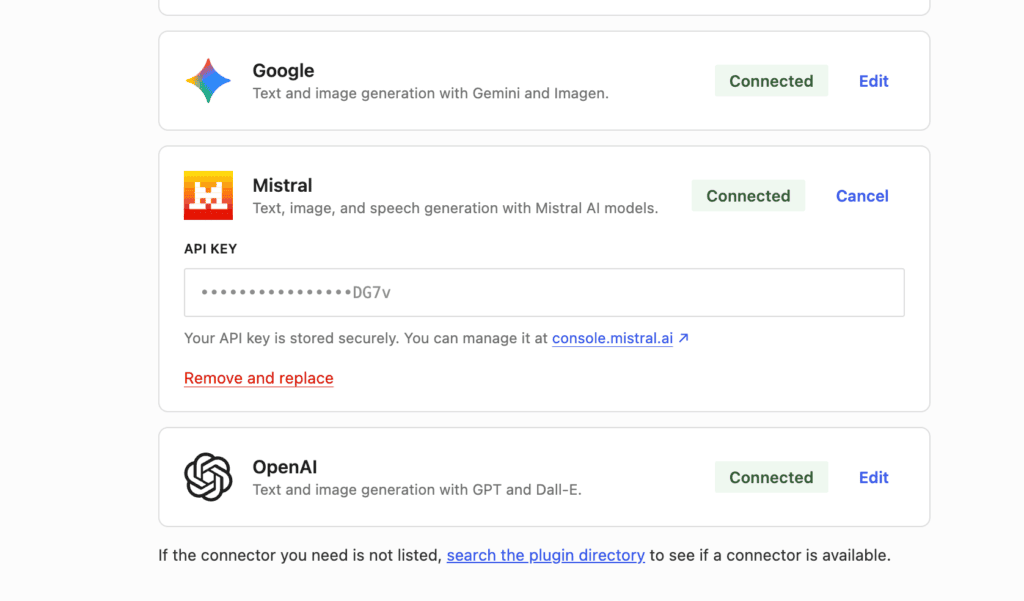
With the connector plugin installed and your API key entered, you can then choose your preferred AI model via the Resolver → Models menu