
This feature is only available in Resolver Pro.
After purchasing Resolver Pro, you’ll receive an email titled “Thanks for Upgrading.” Inside, you’ll find your download link and license key.
This email also includes a username and password, which you can use to log in to your account here. You can redownload Resolver Pro and manage your license key from the account portal any time.
Install Resolver Pro
When you click the download link in the email, you’ll receive a zip file. If you’re using the Safari browser, it may unzip the folder automatically. If this happens, you can right-click on the folder and choose the “Compress” option to turn it back into a zip file.
With the zip file ready, navigate to the Plugins > Add New menu in your WordPress admin dashboard. Then, click the Choose File button and select the zip file.
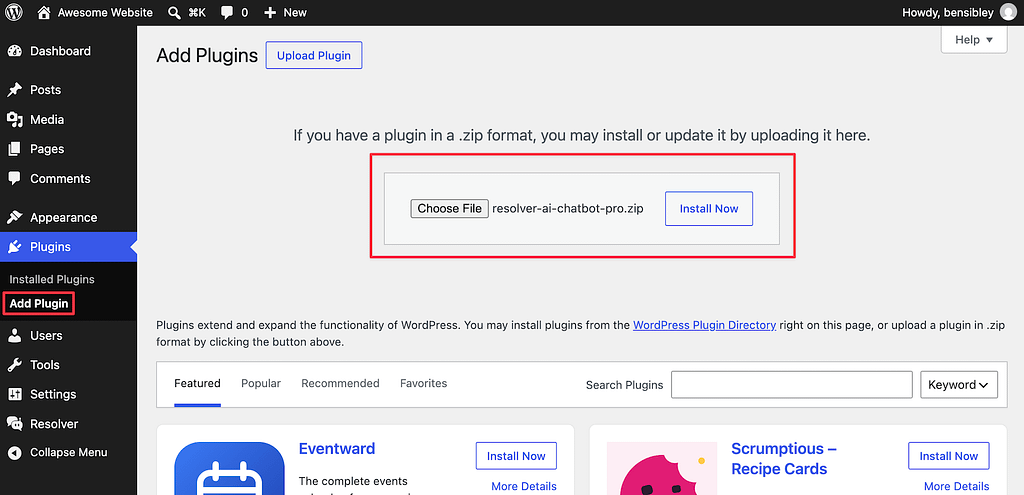
Next, click the Install Now button to begin the installation. The page will reload in a few seconds after the installation is complete.
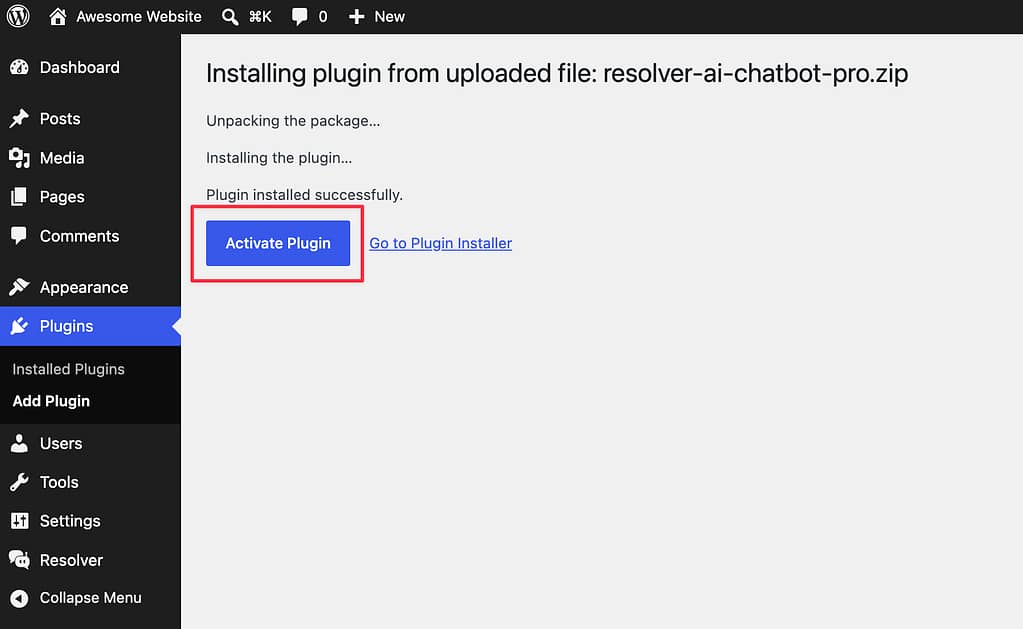
Lastly, click the Activate Plugin button on the next screen.
Activate your license key
After activating the Resolver Pro plugin, you’ll be redirected to a form where you’ll enter your license key.
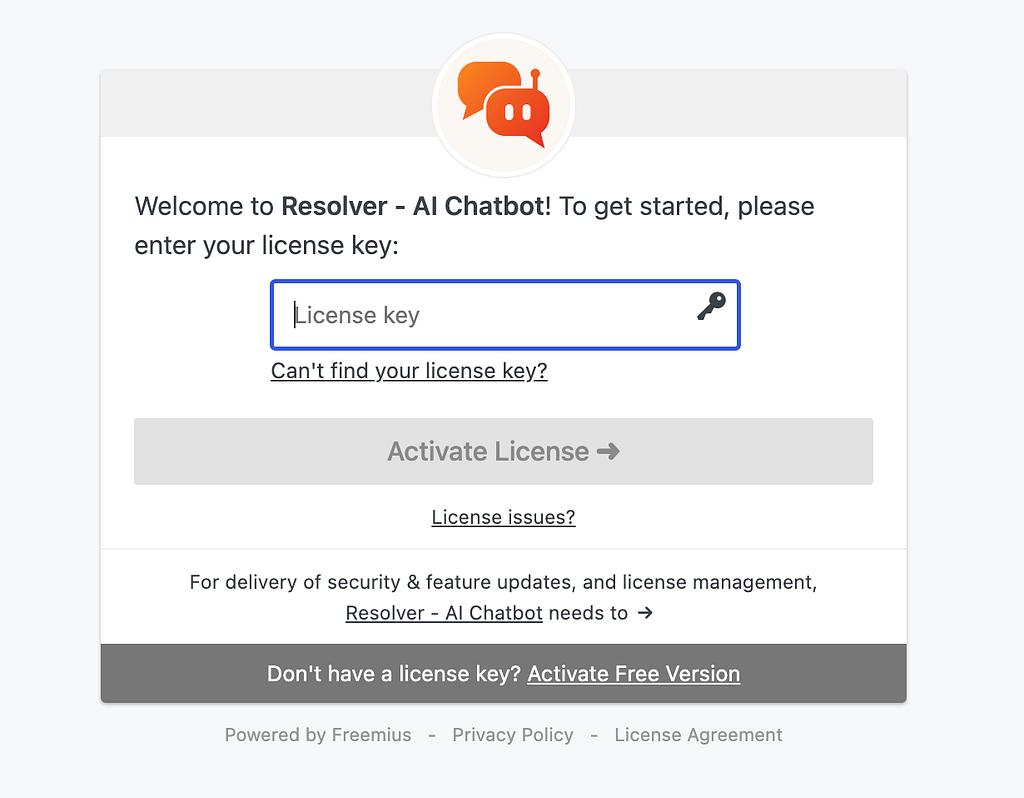
Your license key was included in the “Thanks for Upgrading” email.
If you don’t see the license activation form after activating Resolver Pro, you can visit the Plugins menu and click the Activate License link below the Resolver Pro plugin.
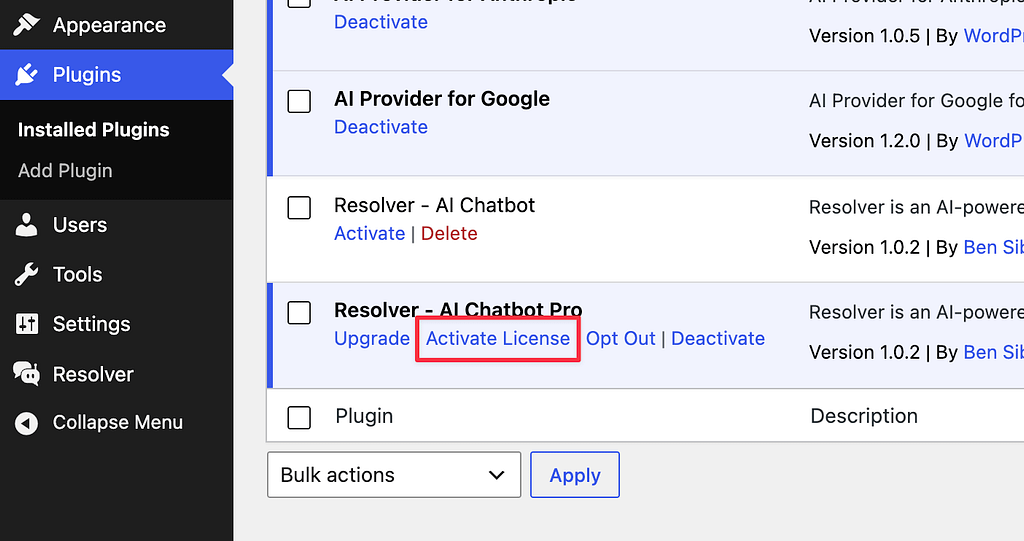
This will open a modal where you can enter and save your license key.
With your license key activated, you now have full access to all of the powerful Resolver Pro features on your site!
When you activate Resolver Pro, it will automatically deactivate the free Resolver plugin. You can delete the free plugin from your site. If your license key expires in the future, you will continue using the current version of Resolver Pro installed on your site.