
To set up an AI chatbot for customer service, you’ll install a chatbot plugin, connect it to an AI model, and train it on your own website content. On a WordPress site, you can do all of that in a few minutes with the free Resolver plugin.
We built Resolver because most customer service chatbots charge for made-up “AI credits,” and they answer from a copy of your content stored on someone else’s servers. Resolver runs inside WordPress, uses your own AI provider’s API key, and retrains itself as your content changes.
This guide walks through the full setup, from start to finish.
What do you need before you start?
You need three things, and most sites already have two of them:
- A WordPress site on version 7.0 or later. Resolver is built on the AI Client that shipped with WordPress 7.0.
- An API key from an AI provider. Resolver works with numerous platforms, including OpenAI (ChatGPT), Anthropic (Claude), Google (Gemini), and Mistral.
- Content that answers your customers’ questions. Product pages, an FAQ page, shipping and returns policies, and help articles are all useful. The chatbot can only be as good as the source material it learns from.
If your answers to common questions only live in your inbox, write the top ten into an FAQ page before you start. It will help the chatbot and your human visitors.
How do you set up a customer service chatbot in WordPress?
There are six steps to setting up a customer support AI chatbot on your website.
1. Install Resolver
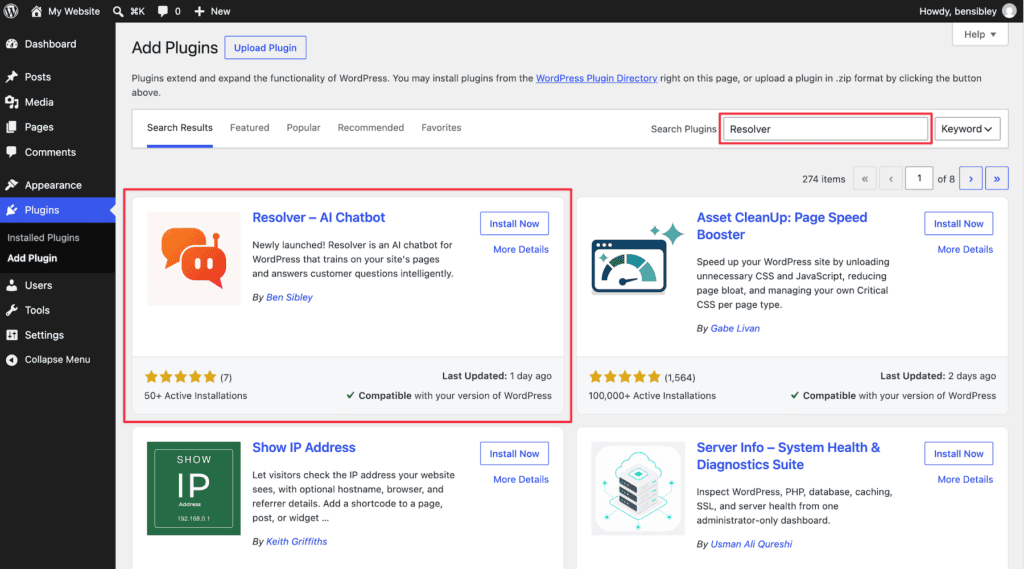
In your WordPress dashboard, go to Plugins → Add New, search for “Resolver”, then click Install Now and Activate on the Resolver plugin.
2. Connect your AI provider
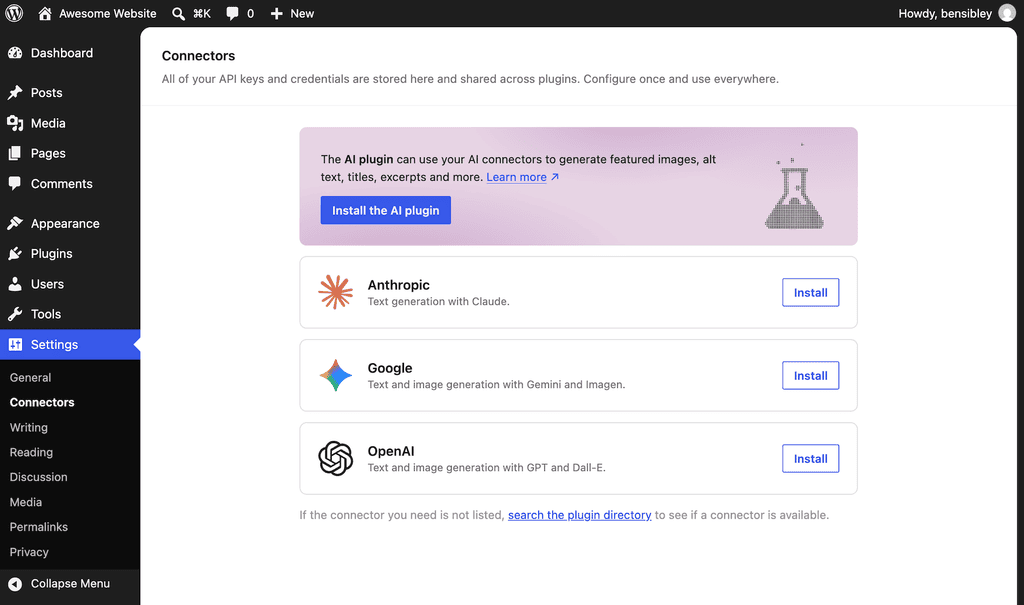
Visit Settings → Connectors and install the connector for your AI platform of choice. Then, enter your API key.
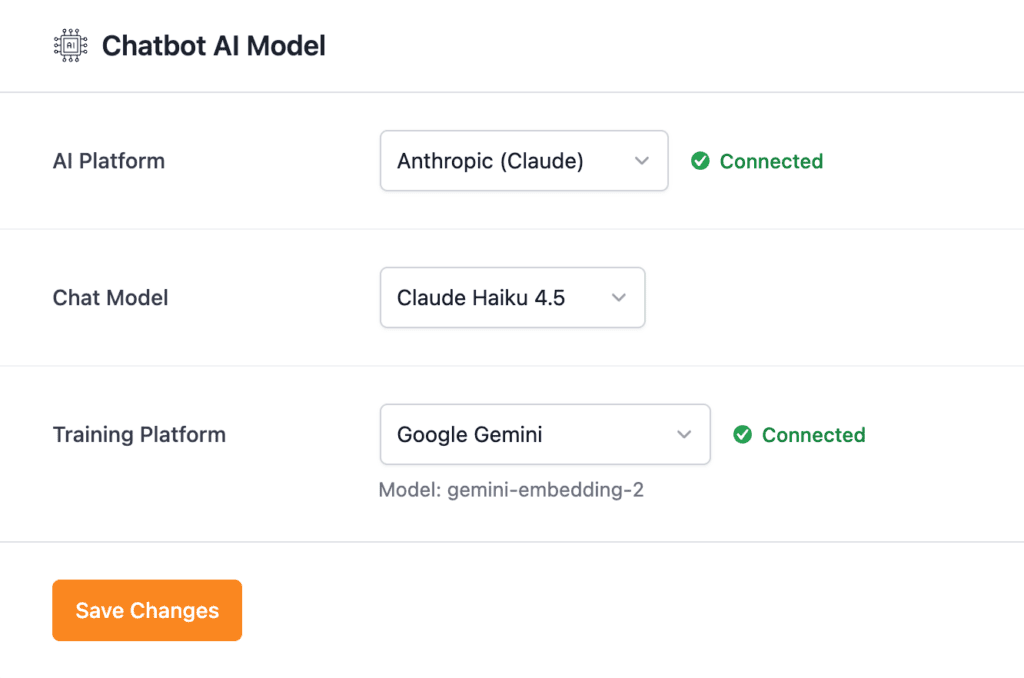
Next, open the Resolver → Model menu and select your AI platform, chat model, and training platform. For customer service, a fast, inexpensive model such as Claude Haiku is usually enough, because the chatbot answers from your content rather than from the model’s general knowledge.
3. Train the chatbot on your content
Go to Training → Pages, click Add Pages, select the pages, posts, and products that answer customer questions, and click Train.
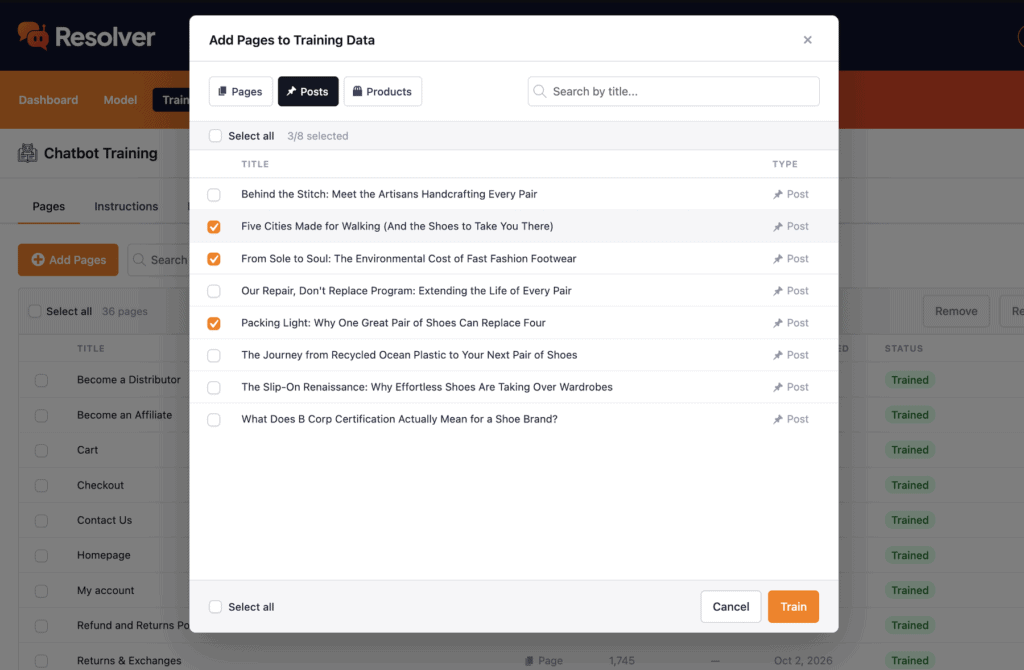
Resolver will begin training right away and can process hundreds of pages in seconds.
It will also retrain on these pages automatically when they’re updated. To keep the chatbot current, check the Train new pages automatically settings in the Advanced Settings section and select the page types to track.
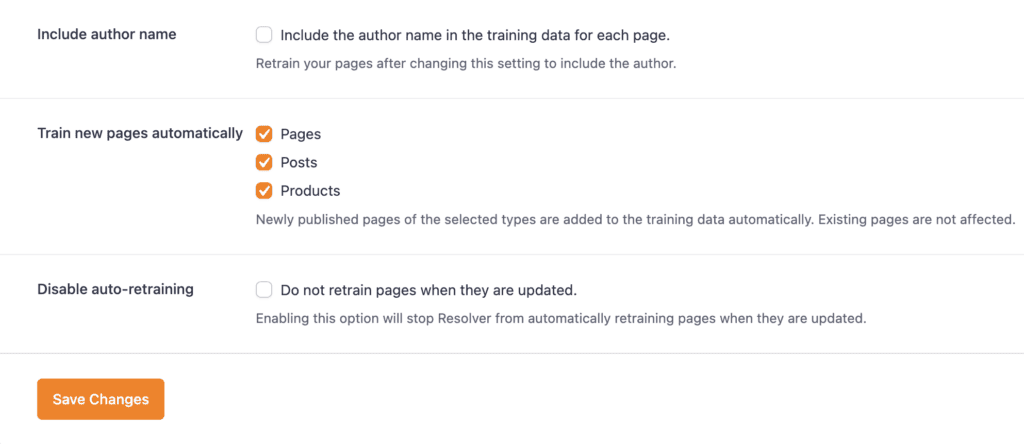
This way, any new pages you publish will be automatically included in the training data.
4. Customize the instructions
The instructions tell the chatbot who it is and how to behave. In Training → Instructions, Resolver splits them into sections that come with sensible defaults, so you only need to tailor them to your business:
- Identity & Purpose: who the chatbot is. Add your business name. For example, “You’re the support assistant for Acme Outdoor Gear.”
- Rules & Limits: what it must never do. The defaults already block discounts, refund promises, and medical or legal advice. Add your own, such as “Never promise delivery dates.”
- Tone & Style: how it talks. For example, “Friendly and brief. Keep replies to a few sentences and link to the relevant page.”
- Human Requests: where to send people who ask for a person. For example, “Send them to support@acme.com or our contact page. We reply within one business day.”
- Base Instructions: the core rules, locked by default. They tell the chatbot to answer only from your content and to say it isn’t sure rather than guess. Leave these alone unless you have a good reason.
Human Requests matters most for customer service. Resolver doesn’t hand chats to a live agent, so this is how customers reach you when the chatbot can’t help.
5. Connect your store (eCommerce sites)
The free plugin already trains on product titles and descriptions. If you sell through WooCommerce, FluentCart, SureCart, or Easy Digital Downloads, the Resolver Pro plugin can also train on product attributes and variations. You can select which attributes you want to include in the training data via the Training → Product Fields menu.
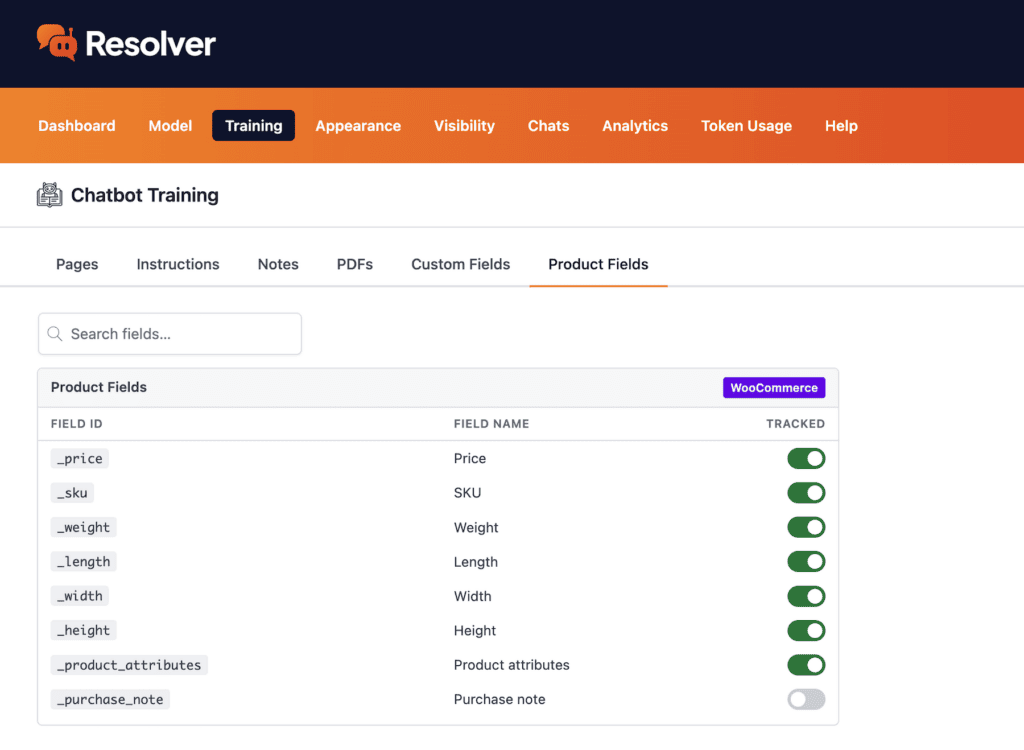
6. Test it, then go live
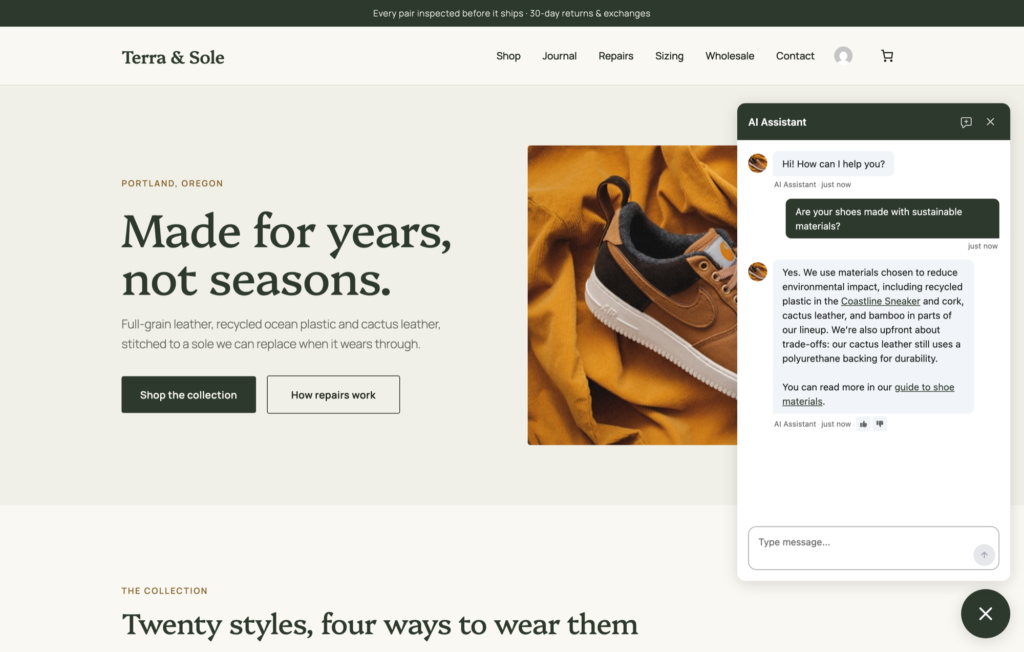
Before you show the chatbot to visitors, ask it the ten questions your customers ask most. Then ask it something your content doesn’t cover, to check that it uses your fallback instead of making up an answer. When the answers look right, set your accent color, bot name, and greeting in the Appearance menu.
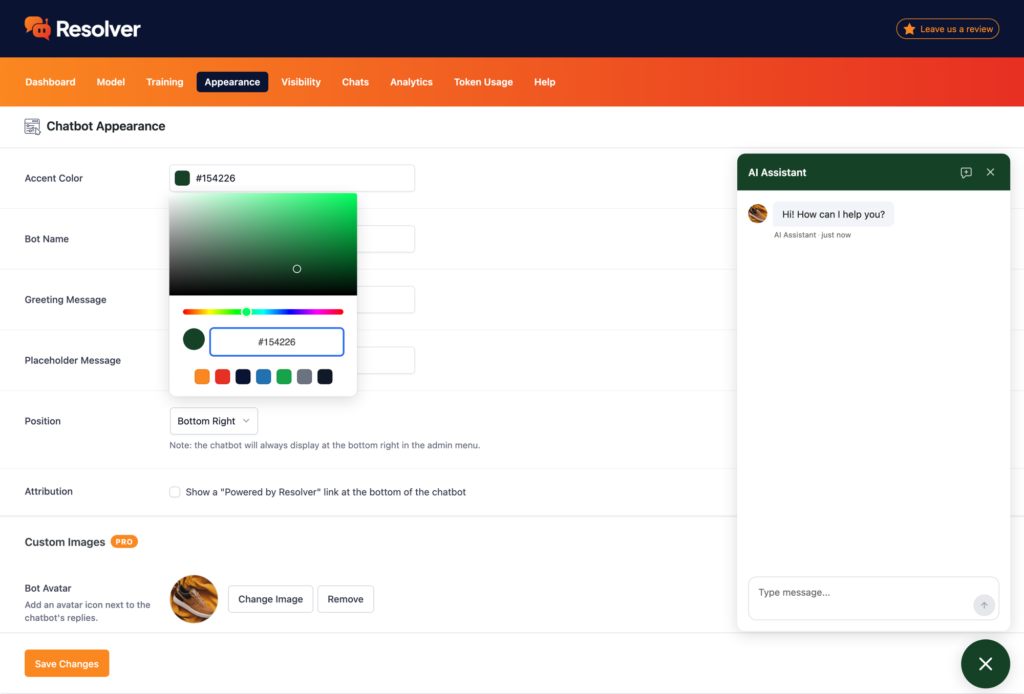
Lastly, open the Visibility menu and toggle the option to display the chatbot. This will launch it immediately across your site.
How do you make a customer service chatbot give accurate answers?
Accuracy comes from the content and the rules, not from the AI model. These are the habits that make the biggest difference:
- Keep your content current. The chatbot repeats whatever your pages say, so an outdated returns policy becomes an outdated answer. Resolver retrains about a minute after you update a page, so fixing the page fixes the answer.
- Answer questions on the page, not just in the chatbot. If customers keep asking something your site doesn’t cover, add it to your FAQ page. The chatbot learns it, and so does Google.
- Set firm limits. Tell the chatbot never to promise refunds, discounts, or delivery dates. Those decisions belong to a person.
- Give it an easy exit. Every customer should be able to reach a human. Put your support email or contact page in the Human Requests instruction.
- Read the conversations. Every conversation is saved in the Chats menu. Review them weekly for the first month: unanswered questions show you exactly which content to write next.
Common questions about customer service chatbots
Can an AI chatbot replace human customer support?
No, but it can handle the repetitive questions, so your team doesn’t have to. Questions about shipping times, return windows, product details, and account basics are a good fit. Complaints, refunds, and anything that needs judgment should go to a person.
How much does an AI customer service chatbot cost?
The Resolver plugin is free. You pay your AI provider directly for usage, which is generally a few cents per conversation, and you can set daily and monthly token limits in the Token Usage menu. Resolver Pro, which adds product fields, PDF training, and analytics, starts at $49 a year. Most hosted chatbots charge a monthly fee that is significantly more expensive than the tokens you’ll pay for with direct API usage.
Will the chatbot make things up?
It is far less likely to when it answers only from your content and has a clear fallback message. Test it with questions your site doesn’t cover, and tighten the rules and limits field if it guesses.
Is customer data sent to a third party?
Questions go to the AI provider whose key you connect, such as OpenAI or Anthropic. Conversations and training data are stored in your own WordPress database, and visitors’ IP addresses aren’t sent to the AI provider. You can also delete old chats automatically with the Data Retention setting in the Chats menu.
Does it work on WooCommerce stores?
Yes. The free plugin trains on product titles and descriptions. Resolver Pro integrates with WooCommerce, FluentCart, SureCart, and Easy Digital Downloads to add prices, attributes, and variations.
Ready to try it? Download Resolver, and you can have it answering customer questions this afternoon.