
With Resolver, you can train your chatbot on your own website’s content so that it provides intelligent and genuinely helpful replies to your visitors.
In this guide, you’ll learn how to choose which pages your chatbot will learn from.
Choose pages to train with
Start by visiting the Training menu. You’ll see an empty table and an orange Add Pages button above it.
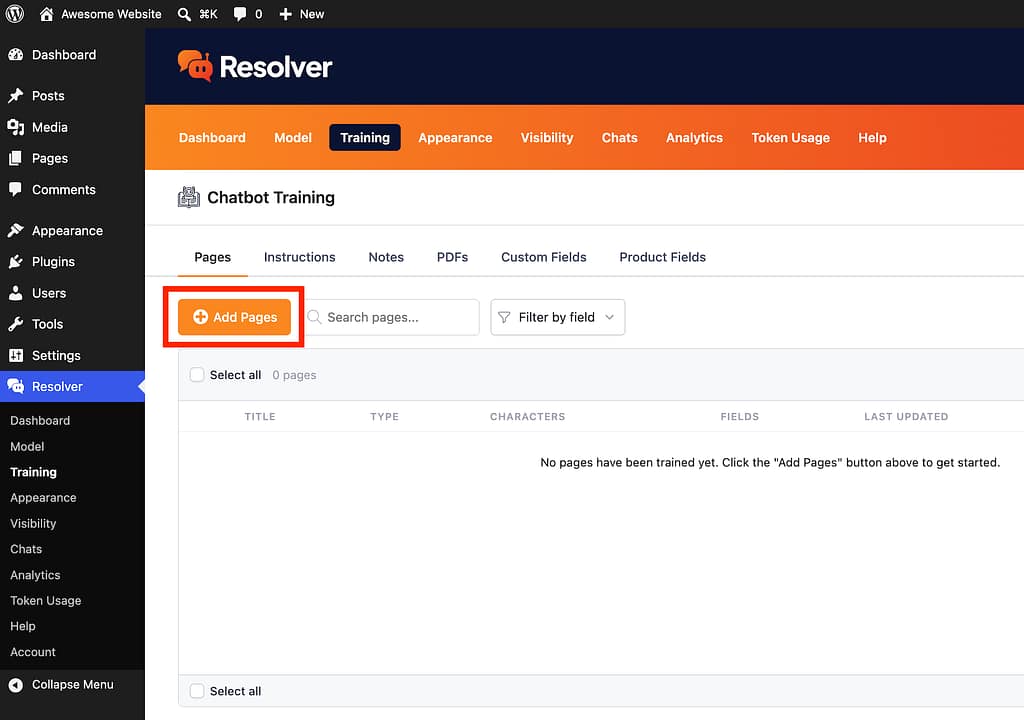
Click the Add Pages button, and it will open a modal where you can choose the pages you want to train your chatbot with.
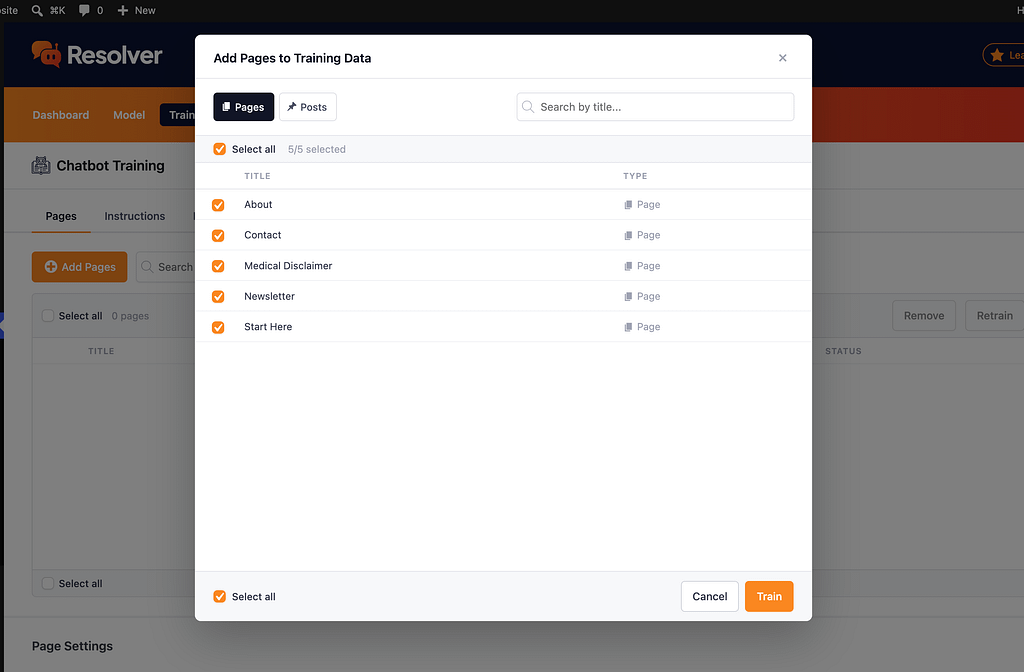
The toolbar in the modal includes buttons to switch between page types and a search bar for quickly finding individual pages.
You can select the pages one by one, or make use of the Select all checkbox to select them in bulk. Once you’re happy with your selection, click the Train button at the bottom of the modal.
The selected pages will be added to the table immediately, and you’ll see the training progress above, which will complete in a few seconds, even if training on hundreds of pages.
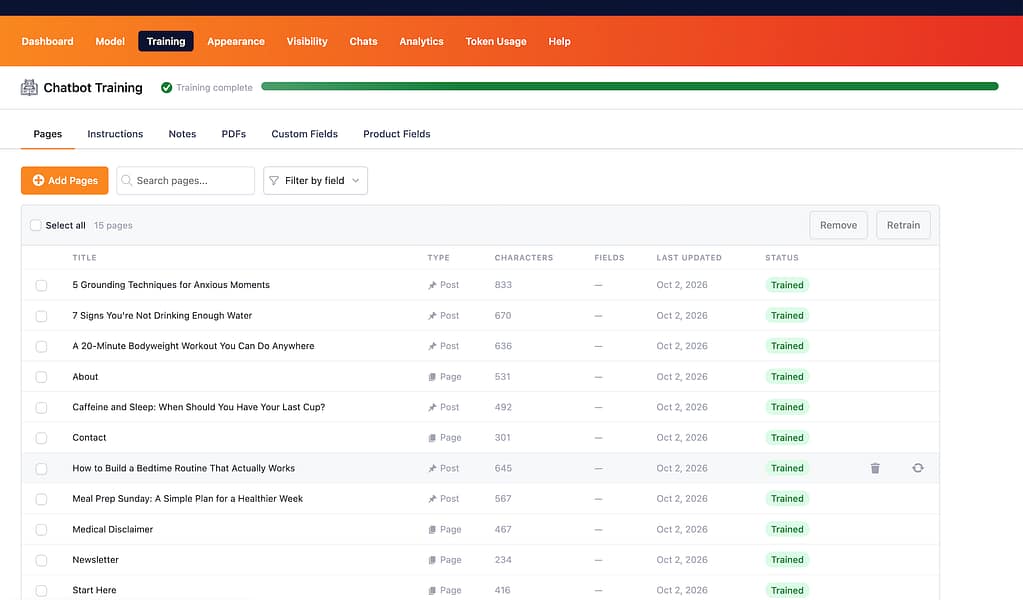
When the training completes, you’ll see that for each page, the table includes the page type, the number of characters found, and the date the page was last trained.
At this point, you can ask your chatbot questions about these pages and the topics they cover, and it can already answer intelligently.
Additionally, Resolver will track these pages and retrain whenever they are updated. For instance, if you add a new paragraph to a page and click the Update button in the editor, Resolver will automatically retrain that page and find the latest content. This keeps your chatbot up to date without any further effort on your part.
Additional Options
The Pages menu includes a handful of additional settings to configure your chatbot.
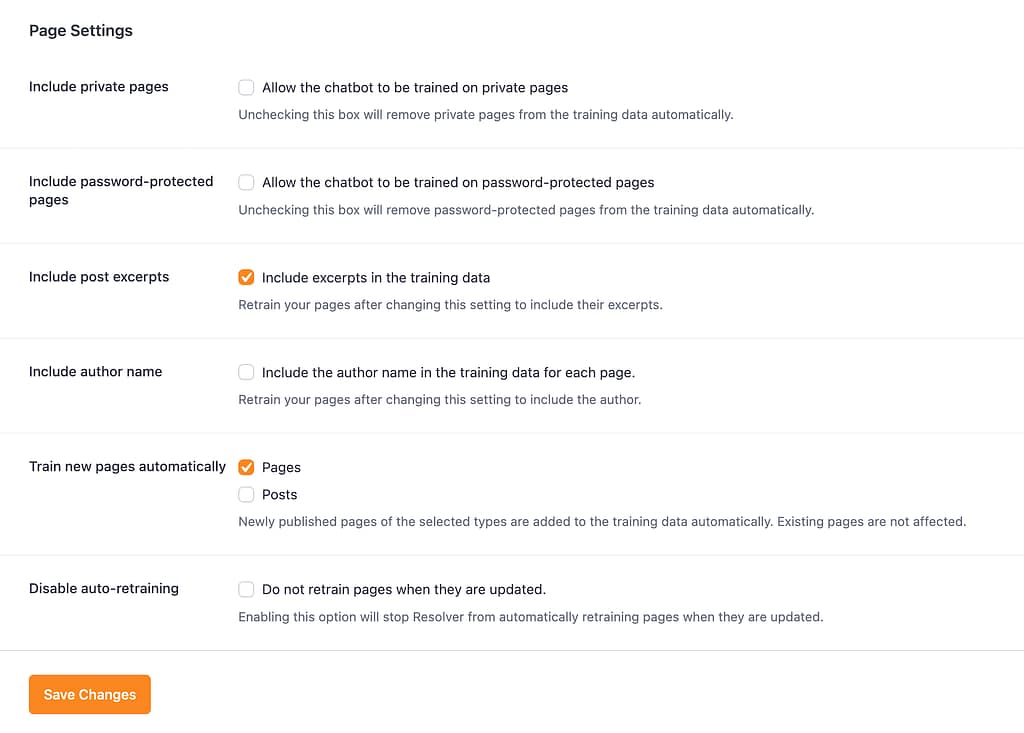
Include private pages – enable this option if you want to include private pages in your training data. Once enabled, these pages will be available for training.
Include password-protected pages – enable this option to make password-protected pages eligible for training.
Include post excerpts – enabling this option will make the chatbot include the full text of post excerpts in addition to their content. Make sure to retrain your chatbot after changing this option so it can find the excerpts and add them to the training data.
Include author name – enable this option to include the name of the author in the training data. You should retrain your chatbot after enabling this option so the author names can be found and added to the training data.
Train new pages automatically – choose which page types you want to track, and Resolver will auto-train on new pages as they’re published.
Disable auto-retraining – if you don’t want Resolver to retrain on pages every time they are updated, you can enable this option.