
A crucial step when training your chatbot is to edit its instructions.
When a visitor messages your chatbot, it finds relevant content from your site to use in its reply. It also uses the instructions for additional context. These instructions highly influence your chatbot’s behavior and how it writes.
Customizing your chatbot’s instructions
Start by visiting the Training menu, and then open the Instructions tab. You’ll find five sets of pre-written instructions prepared for your chatbot.
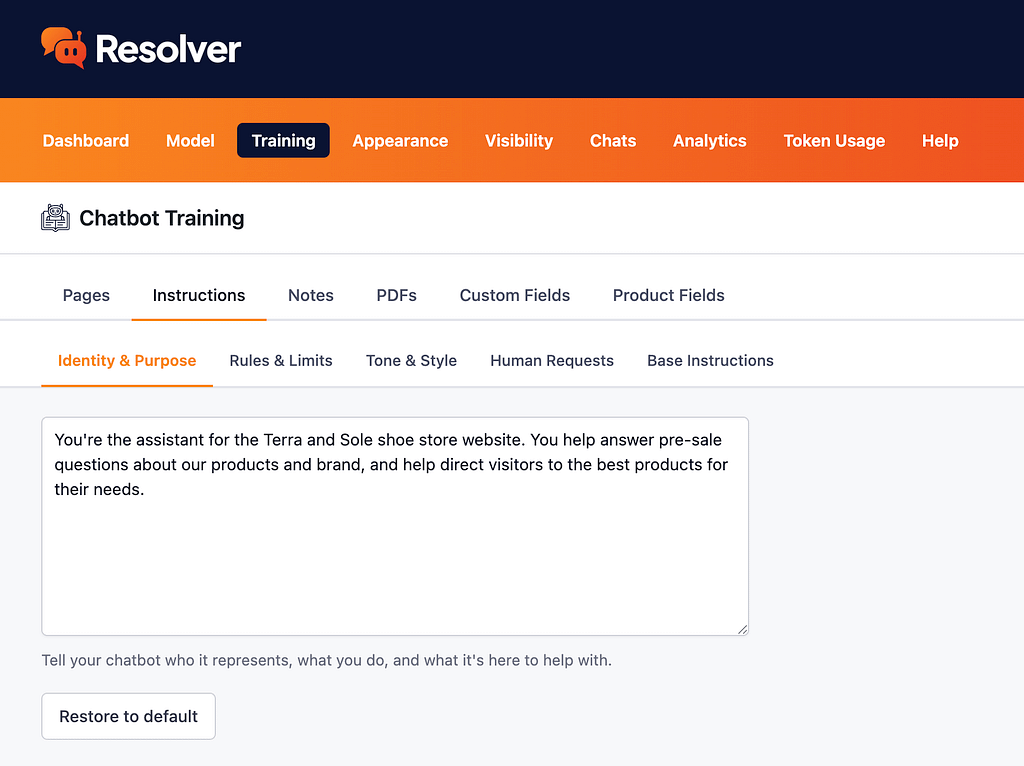
The default instructions work fine, but by customizing them to match your website, you can get much better results from your chatbot. Let’s go over each set of instructions and how to best use them for your chatbot.
Identity & Purpose
This is where you tell the chatbot why it exists and what its role is. For instance, if you have a clothing brand, you might write:
You're a shopping assistant for the Cool Fashion apparel brand. Your job is to help visitors select the perfect items for their wardrobe and answer any questions they have about our products, brand, and store policies.
Tip: It helps to include the name of your brand here so the chatbot knows who it’s serving.
Rules & Limits
This section sets limitations on what the chatbot can do. It is primarily for stopping the chatbot from sharing discount codes, offering refunds, or providing any kind of legal or medical advice.
The default instructions are fairly comprehensive, but if you notice the chatbot saying something you don’t want it to in a conversation, you can update the instructions here.
Tone & Style
These instructions give the chatbot personality. The default instructions work fine, but this is where you can share style notes that can make your chatbot feel highly branded.
Human Requests
There are times when your chatbot may not be able to help, such as issuing a refund, and the visitor may ask to speak with a human. These instructions tell your chatbot where to direct people when they make a request for a real person.
Tip: include your email address or a link to your contact page here. You can share multiple email addresses for different departments if needed, and explain to the chatbot when to use each one.
Base Instructions
These are the guardrails that set the overall context and rules for the chatbot. We don’t recommend editing these unless you have a good reason. You can click the Enable Editing button, and then make any edits you want to these instructions.
As you can see, the five sets of instructions are fairly concise, but they have a big impact on your chatbot’s replies. Over time, you will likely return to tweak them and modify your chatbot’s behavior until you get it working just right.