
This feature is only available in Resolver Pro.
With Resolver Pro, you can train your chatbot on any PDFs in your Media Library.
How to Add PDFs
Start by visiting the Resolver > Training > PDFs menu. There, you’ll see a Scan Media Library for PDFs button near the top of the page.
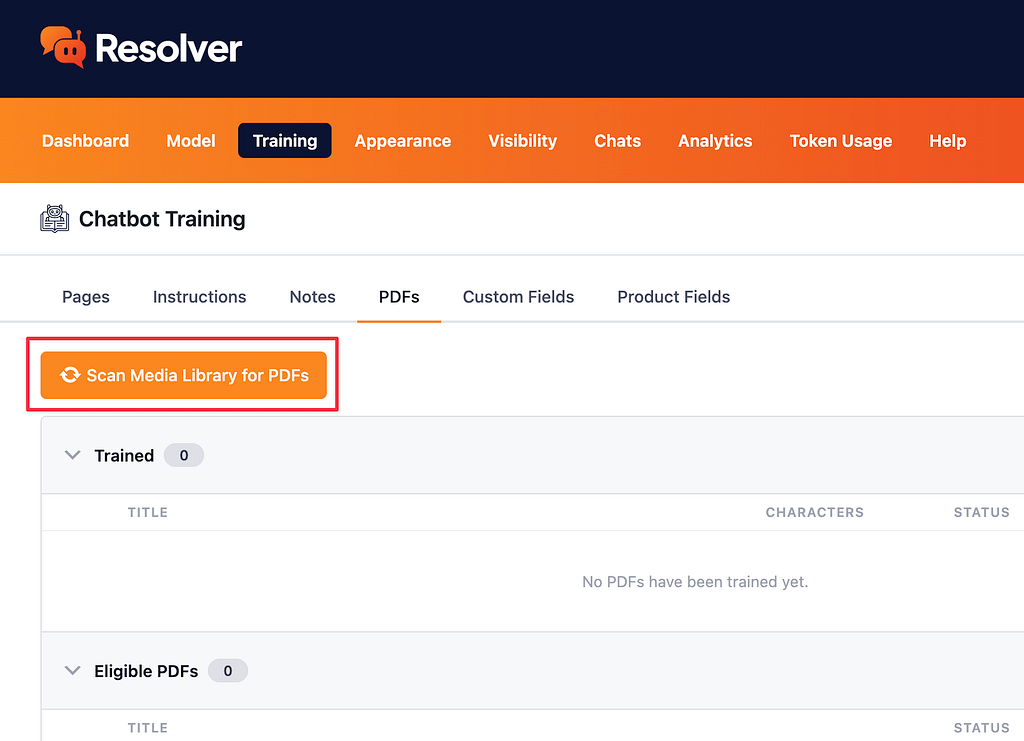
Click this button and Resolver Pro will immediately begin scanning your Media Library for PDF files. It should complete in a few seconds.
Once the scan is complete, you will see your PDFs show up in either the Eligible or Ineligible section, like this:
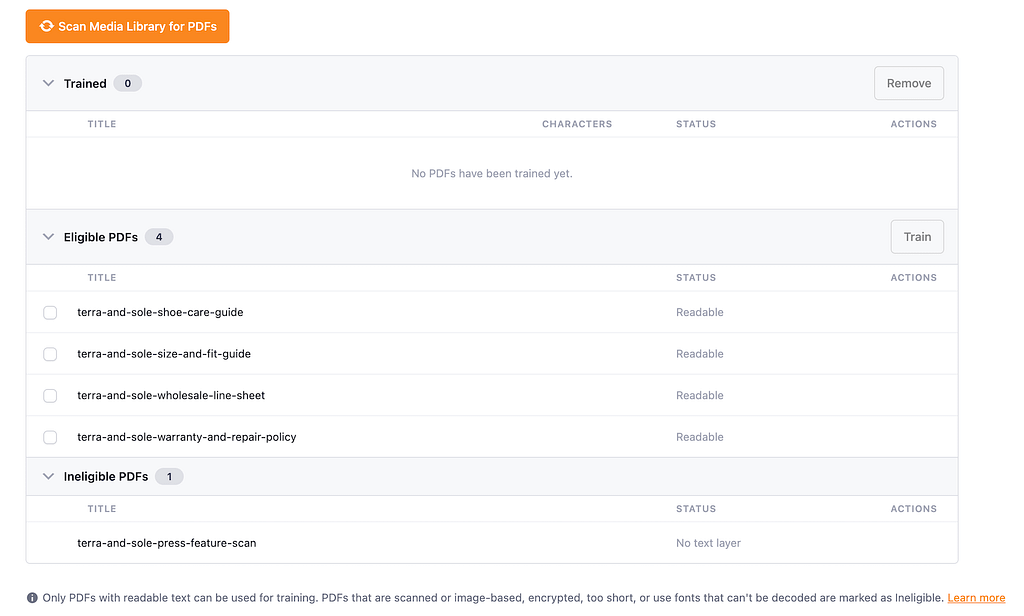
Next, select any eligible PDFs you want to train the chatbot with, and click the Train button at the top of the table.
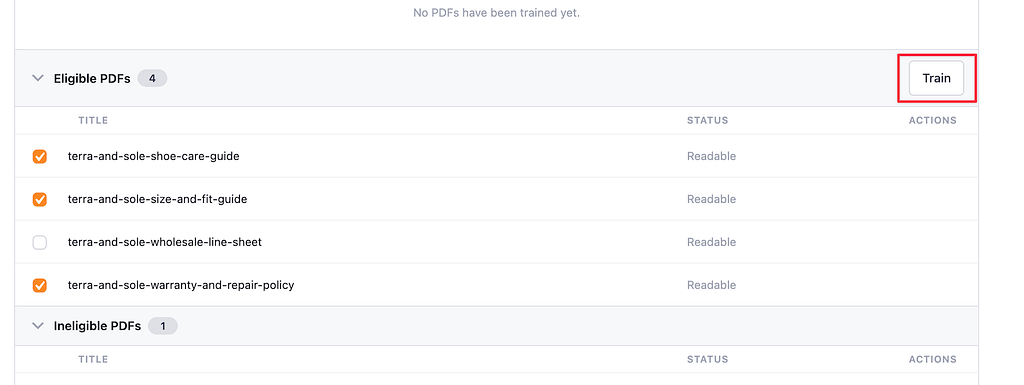
Resolver Pro will fully train on the text in these PDFs, then move them to the Trained section.
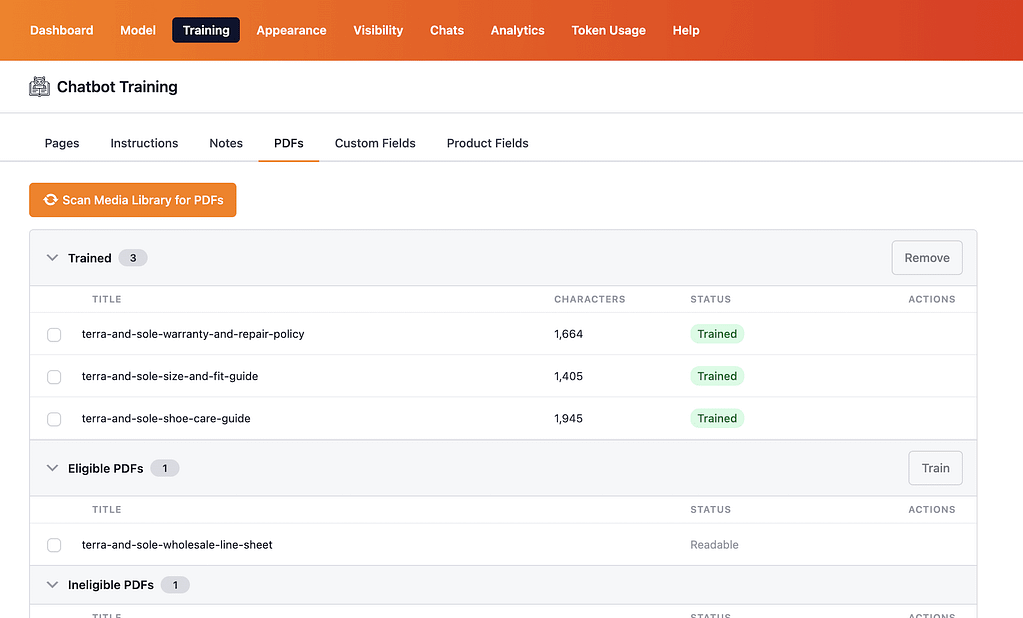
To add more PDFs in the future, upload them to your Media Library, scan the Media Library, and then train the newly found PDFs.
What makes a PDF ineligible?
Primarily, PDFs will be marked as ineligible if they are image-based.
PDFs can either be text-based or image-based, and when they are image-based, there are no words in the file for Resolver to extract, so it cannot use them for training.
Text can be extracted from images using OCR technology, but this is not something that can be installed and run from a WordPress website. We may add integrations with external OCR APIs in the future.
PDFs can also be marked as ineligible if they are encrypted, too large, or can’t be decoded. If you have a PDF that is too large for training (>25MB), you can split it into multiple files. For a PDF that can’t be decoded, feel free to contact us and share a copy of the PDF, and we will see if we can adjust our PDF reader to support it.