
This feature is only available in Resolver Pro.
Resolver Pro can learn more about your eCommerce products by training on product field data stored outside of the main product descriptions.
How to track a product field
First, visit the Resolver > Training > Product Fields submenu. You’ll find a list of all the product fields found for your eCommerce plugin.
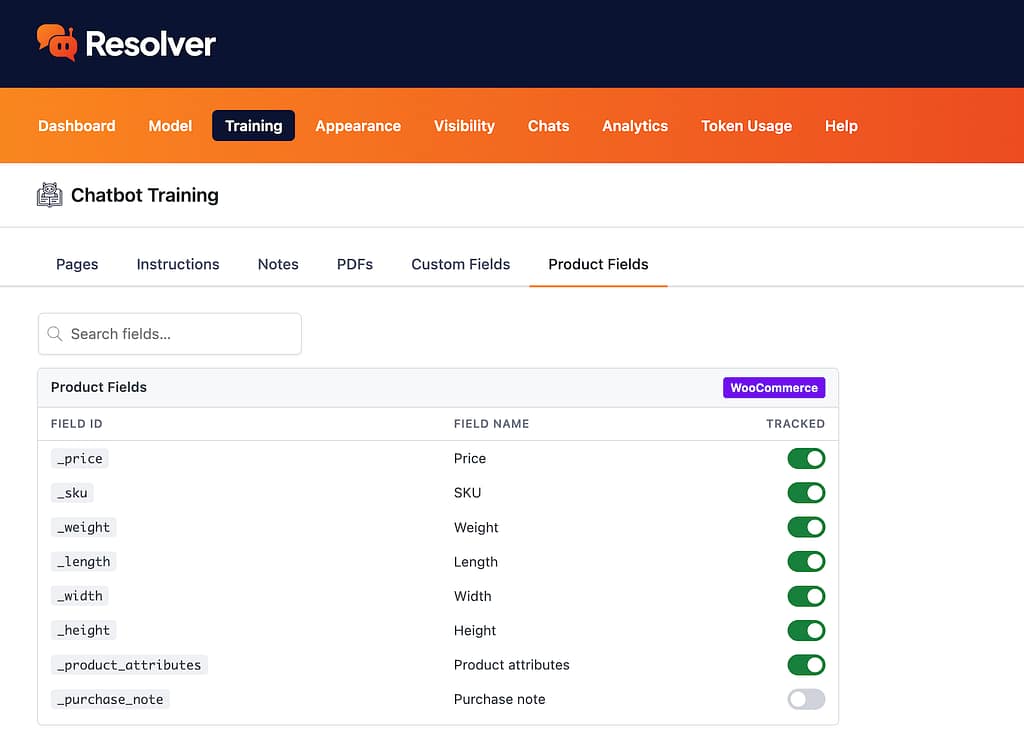
Next to each of the fields, there is a toggle button you can click to track or untrack the field. You should track any fields that you want your chatbot to know about.
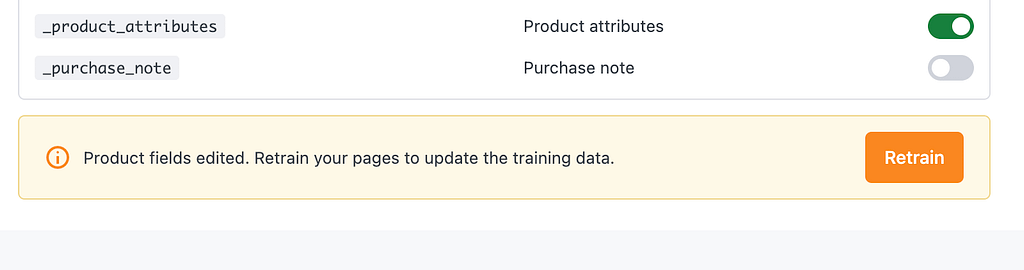
Once you’re finished configuring the fields, you’ll need to retrain the chatbot on all of your product pages so that it can find and index the content stored in these fields.
A helpful prompt will show up at the bottom of the screen with a Retrain button you can click to do this.
What fields are available?
Resolver Pro can be trained with all of the following WooCommerce product fields:
| Field ID | Field Name |
|---|---|
_price | Price |
_regular_price | Regular price |
_sale_price | Sale price |
_sku | SKU |
_weight | Weight |
_length | Length |
_width | Width |
_height | Height |
_product_attributes | Product attributes |
_purchase_note | Purchase note |
Each field is optional, so choose whichever ones you’d like to train with and ignore the rest.
Untracking a field
If there is a product field you no longer want to include in the training data, you can untoggle it from the Training > Product Fields menu.
Once the field is untracked, you need to retrain the chatbot so that it excludes this field’s content from the training data. Click the Retrain button in the prompt that appears after untracking the field to do this.
You can manually retrain your pages yourself as well. Open the Training > Pages menu, filter the pages by Product, select all remaining pages, then click Retrain to retrain them all.