
This feature is only available in Resolver Pro.
The JetEngine plugin allows you to create relationships between posts, pages, and custom post types.
For instance, you might add a relation between your posts and products that allows you to select some products as recommendations to include in the post.
Here’s where you can find the JetEngine Relations menu.
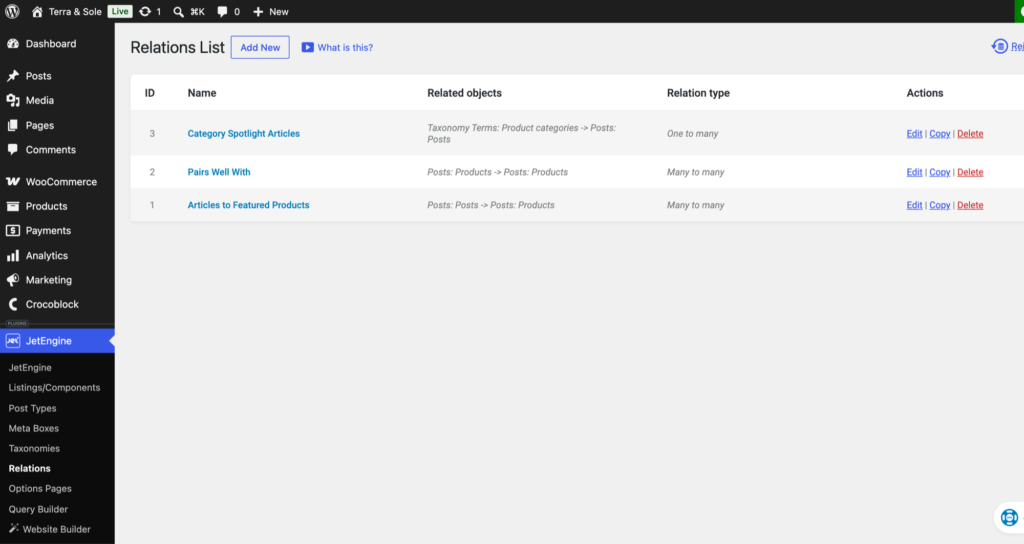
Resolver Pro includes a dedicated section for relations in the Resolver → Training → Custom Fields menu. There, you’ll see toggles to choose which relations you want to include in the training data.
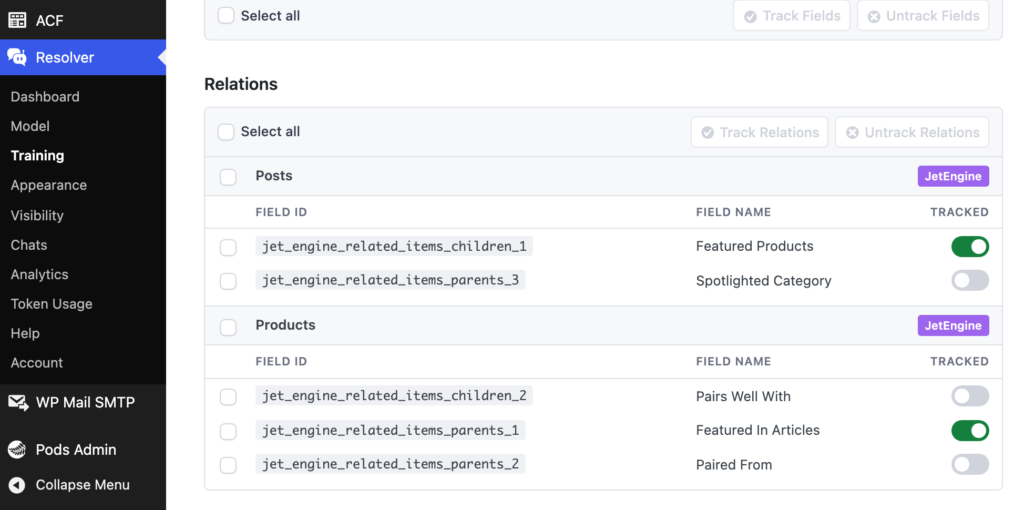
There is a toggle for both sides of the relationship. For instance, the example above shows that you could include the “Featured Products” when training on your posts. This means that when Resolver Pro trains on a post, it will also find the recommended products. Conversely, if you enable the “Featured In Articles” relation for your products, then Resolver Pro will find the list of posts where each product was featured when it trains on that product.
Why train on relations?
Training on relations is useful when it helps the chatbot find data it might otherwise have a hard time locating.
For instance, if you have important information that isn’t included anywhere else on a page besides in the JetEngine relation, then that would be helpful context for the chatbot to have. It will be able to provide better responses when it can find this additional content.
On the other hand, if the content in the relation is already included in the page’s content, it may not be important to include in the training data. For instance, a relation that includes recommended products may not be necessary if the post content itself already mentions all of the recommended products.
Editing the labels
The Field Name column will have labels that you entered for each Relation. If you don’t recognize them, open the JetEngine → Relations menu, choose a relation, and then edit the labels in the Labels section, like this:
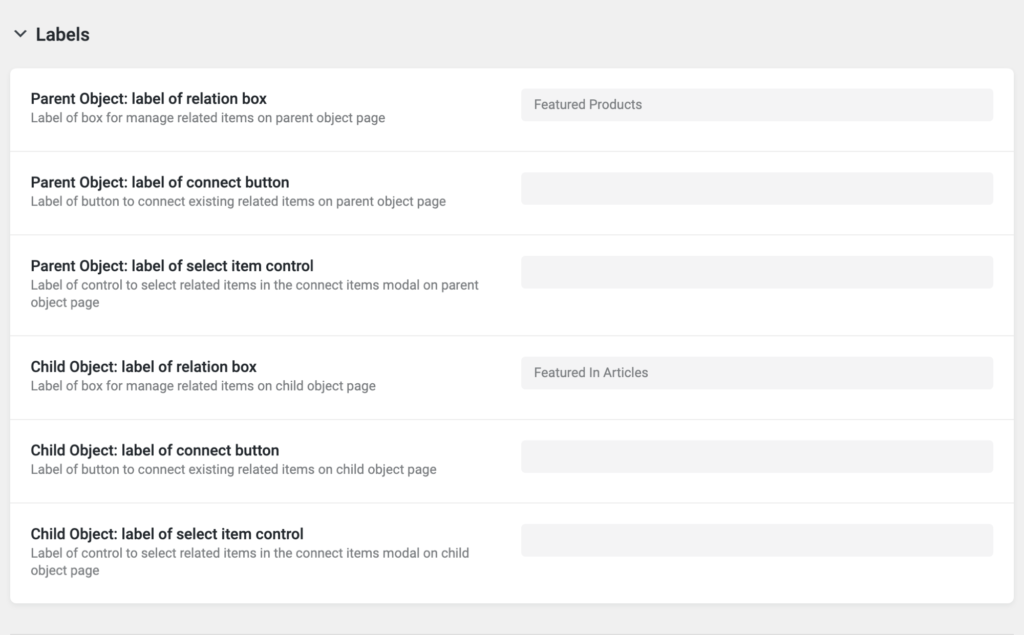
These are the labels that Resolver Pro uses, so setting them here will make it easier to understand what you’re doing in the Resolver → Training → Custom Fields menu.